 |
Thermal Camera SDK 11.4.10
SDK for Optris Thermal Cameras
|
|
Thermal Camera SDK 11.4.10
SDK for Optris Thermal Cameras
|
Color palettes define the mapping from a temperature value to a color in a false color image. Each palette is a lookup table of 240 RGB entries. Palettes are loaded from .csv files at runtime, which means you can edit, add or replace them without recompiling your application. The SDK ships 11 built-in palettes.
Iron is hardcoded into the SDK and is used when no other palettes are available.All palette management goes through the static Sdk class. The ImageBuilder selects an active palette by name.
The following palettes are installed with the SDK:
| Name | Description | Example |
|---|---|---|
AlarmBlue | Blue gradient alarm palette. | 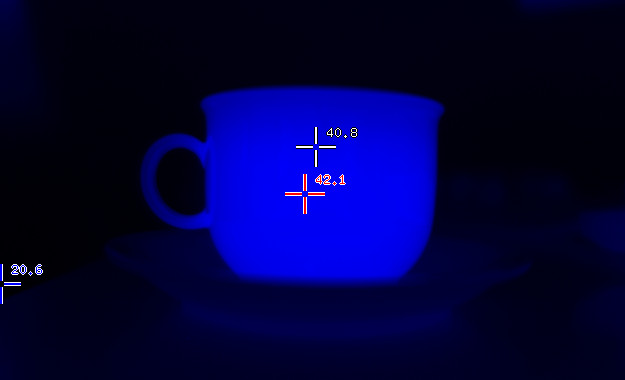 |
AlarmBlueHi | High-contrast blue alarm palette. | 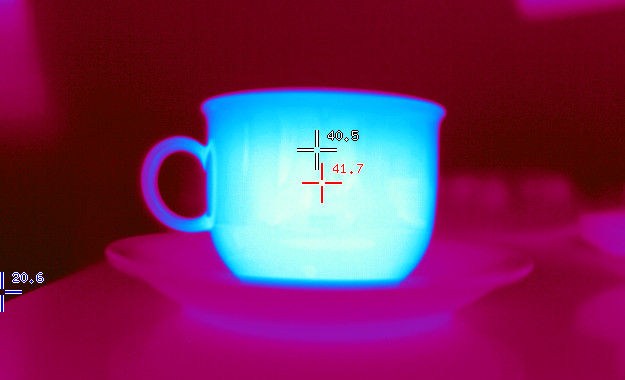 |
AlarmGreen | Green gradient alarm palette. | 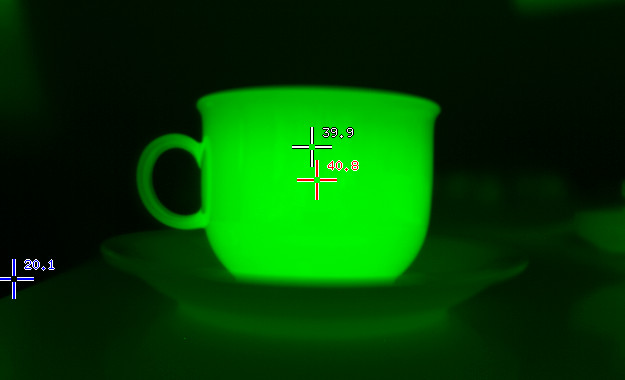 |
AlarmRed | Red gradient alarm palette. | 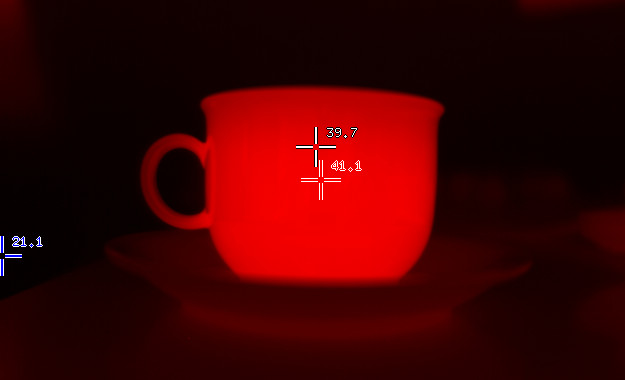 |
GrayBW | Grayscale, black (cold) to white (hot). | 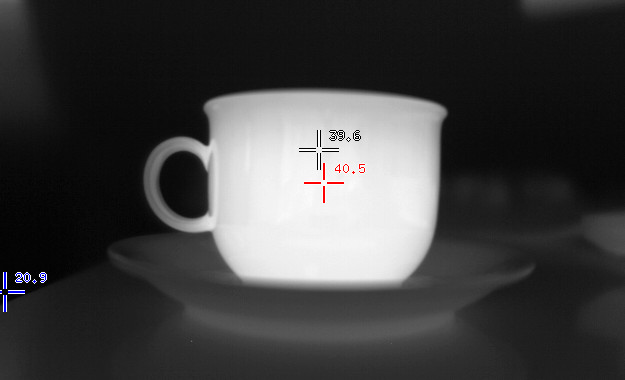 |
GrayWB | Grayscale, white (cold) to black (hot). |  |
Iron | Classic iron/fire gradient (default). | 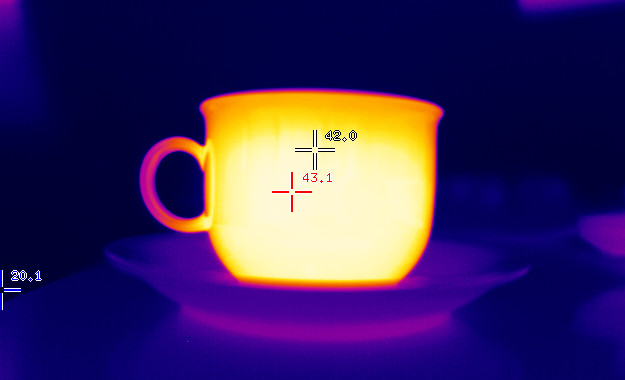 |
IronHi | High-contrast iron palette. | 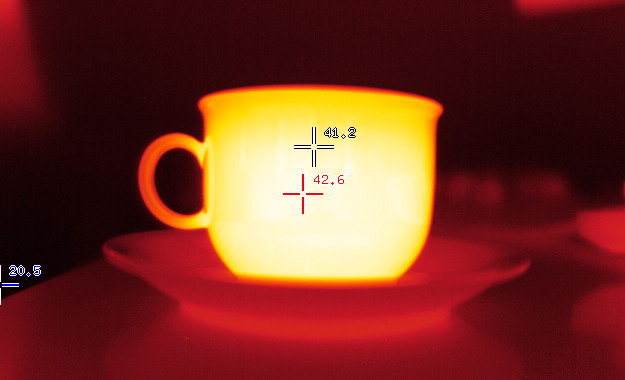 |
Medical | Medical imaging palette. | 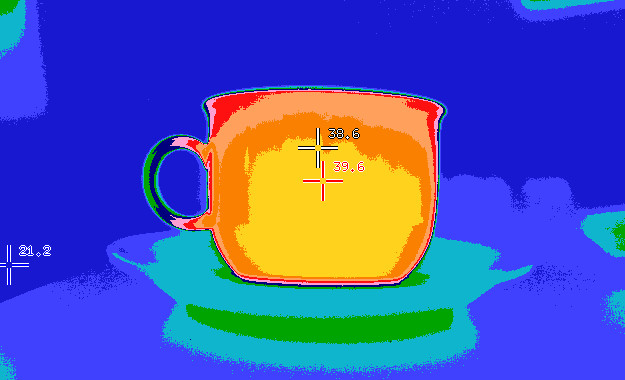 |
Rainbow | Full-spectrum rainbow palette. | 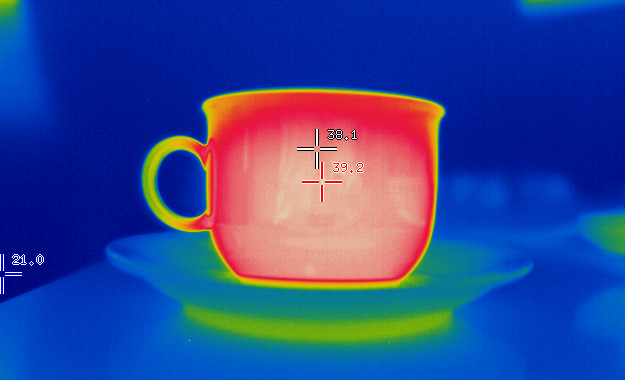 |
RainbowHi | High-contrast rainbow palette. | 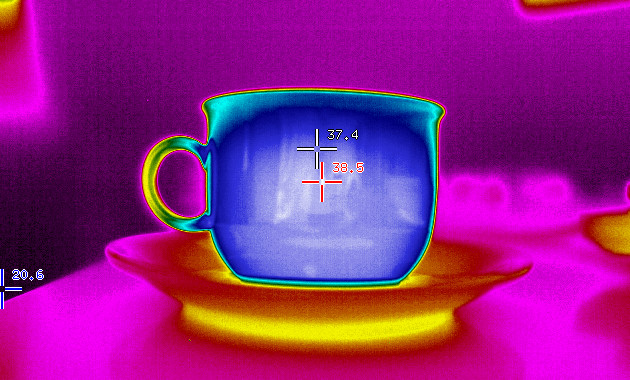 |
Each palette is stored in a plain-text CSV file. The filename stem is the palette name — for example Iron.csv registers the palette "Iron".
The file format is one R,G,B triplet per line, with values in the range of [0, 255]. Exactly 240 lines of color data are required. Blank lines and lines starting with # are ignored.
By default the built-in palette file are stored in
<SDK Install Directory>\palettes\ on Windows/usr/share/otcsdk/palettes/ on Linuxduring installation.
Placing a .csv file in a palettes/ subfolder next to your application executable is enough for it to be picked up automatically when Sdk::loadPalettes() is called.
For more details about the file locations refer to the important files section.
Palettes are loaded automatically when Sdk::init() is called. No additional setup is required.
C++
C#
Python
Call Sdk::loadPalettes() explicitly only if you need to reload from disk, for example after placing new palette files in one of the palette directories at runtime:
C++
C#
Python
Sdk::loadPalettes() reloads all palettes from disk. This discards any runtime-registered palettes that have not yet been saved.If you have palettes in an additional directory, use the overload that takes a path:
C++
C#
Python
When specifying the directory path the following symbols/variables are supported:
~, %USERPROFILE% refer to ~/ on Linux and <User Home>/ on Windows.%APPDATA% refers to ~/.config/ on Linux and <User AppData>/Roaming/ on Windows.Relative paths are not supported. You can either use / as system independent directory separator or utilize system dependent ones like / for Linux and \ on Windows.
Pass the palette name as a string to ImageBuilder::setPalette(). The name is case-sensitive and must match the CSV filename stem exactly.
C++
C#
Python
You can get the name of the currently used color palette via:
C++
C#
Python
To get a list of all available palettes:
C++
C#
Python
You can register a palette at runtime by providing exactly 240 RGB triples. This does not persist the palette to disk.
C++
Alternatively, create a .csv file and place it in your user palette directory. It will be picked up automatically the next time Sdk::loadPalettes() is called.
To save a runtime-registered palette permanently call Sdk::savePalette(). It writes a .csv file to the user palette directory. The directory will be automatically created if it does not exist.
C++
C#
Python
Upon success the palette is saved in the file MyPalette.csv and will be loaded automatically the next time Sdk::loadPalettes() is called.
 1.9.8
1.9.8