 |
Thermal Camera SDK 11.3.0
SDK for Optris Thermal Cameras
|
|
Thermal Camera SDK 11.3.0
SDK for Optris Thermal Cameras
|
You can download the Optris Thermal Camera SDK from the following websites:
Please take care when choosing the correct Debian package for your Linux installation. Make sure that the Ubuntu LTS version and the platform architecture (amd64, arm64) match. Otherwise you will run into compatibility issues.
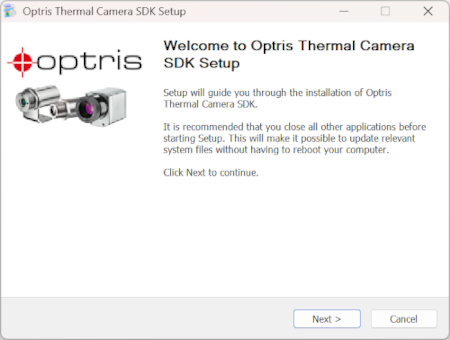
Once the download is complete double click on the installer. You will be greeted with the following welcome page:
Click Next to be prompted for the SDK installation directory:
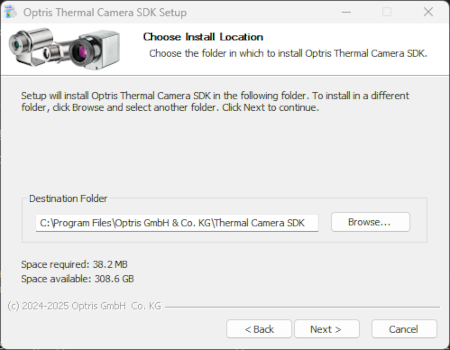
You are free to choose a different directory. The installer creates the system wide environment variable OTC_SDK_DIR with your chosen install location. This variable is used by the SDK to locate important files. You can utilize it to setup the include and library directories of your Visual Studio C++ project. For more details please refer to the Project Integration section in the Start Developing chapter.
Next you can select the SDK components to be installed:
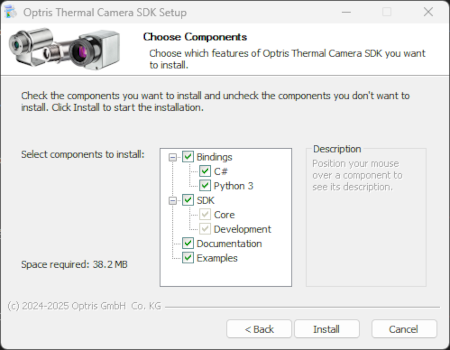
Only the SDK components Core and Development are mandatory because they include all the necessary libraries, C++ headers and CMake configuration files to use the SDK. The Bindings components provide the resources you need to use the SDK in the listed programming languages. The Documentation component includes the offline documentation of the SDK primarily comprised out of this HTML based API documentation. The Examples component provides source code examples for each of the supported programming languages.
After the installation is complete you can find all the files comprising the SDK in your chosen installation directory. Besides this the installer has, depending on your component choices,
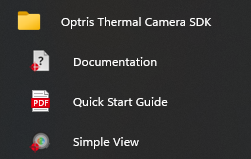
Documents folderYou can try out the installed SDK by connecting an Optris thermal camera to your computer and by starting the Simple View example application from the start menu.
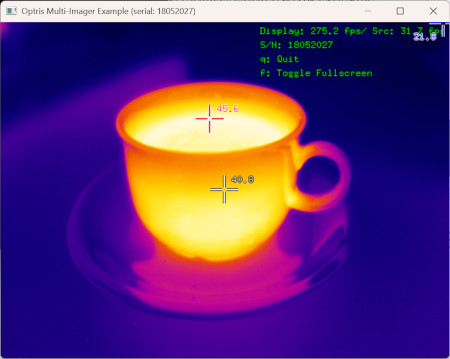
The example can automatically detect devices connected via USB and on the local network 192.168.0.0/24. The Ethernet based devices, however, need a corresponding on-device network configuration must a specific firmware revision (s. Device Enumeration for more details). If everything works fine, you should see a window with a live false color image stream looking something like this:
If the example fails to start, you may have to download the C++ redistributable v14 for the amd64/X64 architecture from Microsoft.
To uninstall the SDK navigate to the Apps section of the Windows Settings application. Choose Installed apps and click on the three dots of the entry Optris Thermal Camera SDK and select the Uninstall option. This runs the uninstaller that will remove the SDK from your system.

Documents folder. This is done to avoid unintentionally deleting the work you have done with them.Once you verified that you downloaded the correct package for your Ubuntu installation and platform open up a terminal and navigate to the download folder. Install the package by executing the following command:
This installs not only the SDK but also all of its dependencies. You will see the following notice at the end of the apt command output:
It appears with every package installed directly from the filesystem and can safely be ignored. The SDK was installed correctly.
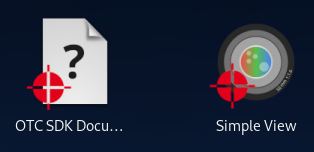
dpkg -i to install the Debian package but it will NOT install missing package dependencies!If you have a desktop environment installed, the installation will automatically create two entries in the desktop menu. The first one opens this documentation in your chosen default browser and the second one starts the Simple View example.
You can test the installation by attaching a camera to your computer and by starting the Simple View example.
The example can automatically detect devices connected via USB and on the local network 192.168.0.0/24. The Ethernet based devices, however, need a corresponding on-device network configuration must a specific firmware revision (s. Device Enumeration for more details). If everything works fine, a window displaying a live stream of false color images will appear.
You can uninstall the SDK with the help of the following command:
 1.13.2